Getting Started with VidFlow
Learn how to set up your account, create your first project, and navigate the five-stage video pipeline.
Creating Your Account
Sign up with your email address or continue with Google to create a VidFlow account. After confirming your email you will land on the dashboard with a small credit allocation already applied to your balance so you can try the platform straight away. We recommend completing your profile in Settings → Profile before creating your first project, as your name and timezone are used to personalise AI suggestions.
The Project Creation Wizard
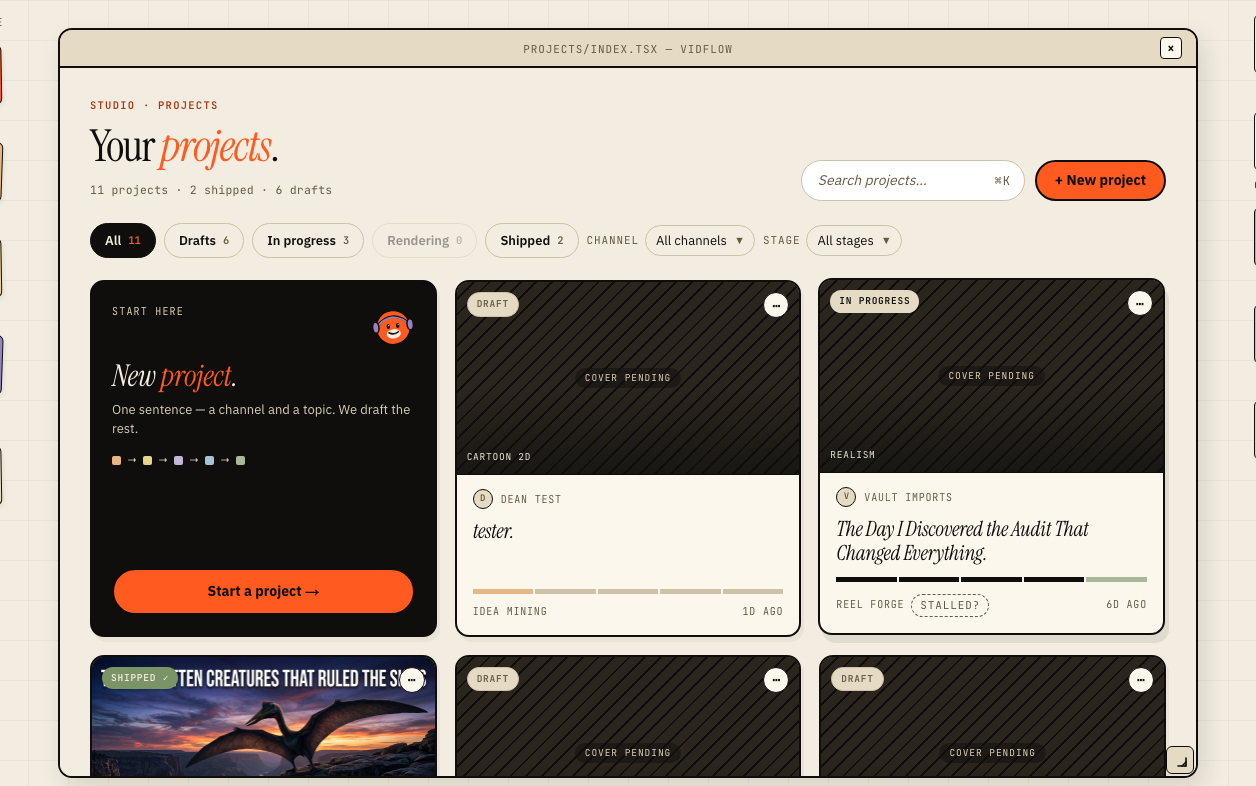
Every video starts with the project creation wizard, which you open by clicking "New Project" on the dashboard. It is three quick steps: choose which channel the video belongs to, decide how much to direct, and find a template to start from. If you are already working inside a single channel, the channel step is skipped and it becomes a two-step flow. You can change almost anything later, so you do not need to get every choice perfect up front.
- ›Step 1 — Which channel? (skipped when a channel is locked)
- ›Step 2 — How much to direct? Quick mode (one-button auto-run) or Director mode (every stage exposed)
- ›Step 3 — Find a template to start from
Navigating the Pipeline
Once a project is created you will see the five-stage pipeline rail at the top of the project editor: Ideation, Script, Visual Bible, Voiceover, and Production. Stages build on each other in order — you approve the current stage before moving on. Click any unlocked stage on the rail to jump directly to it, and use the stage status glyphs to see which stages are complete, in-progress, or pending. Your progress is saved continuously, so you can close the browser and return exactly where you left off.
Using the Command Palette
Press Cmd+K (or Ctrl+K on Windows and Linux) at any time to open the command palette. From here you can jump to any project, settings page, or help article without taking your hands off the keyboard. The palette is for fast navigation — it does not run AI operations itself; you start those from the stage you navigate to. It supports fuzzy search, so typing a few characters of a name is usually enough to find what you need. Press Esc to close it.
Getting Help
This Help Center contains articles on every platform feature, plus an FAQ covering the most common questions. If you cannot find the answer here, use the in-app chat widget to speak with our support team. For bug reports and feature requests, visit the community forum linked in the footer.